Split View
Work with two queries side-by-side.
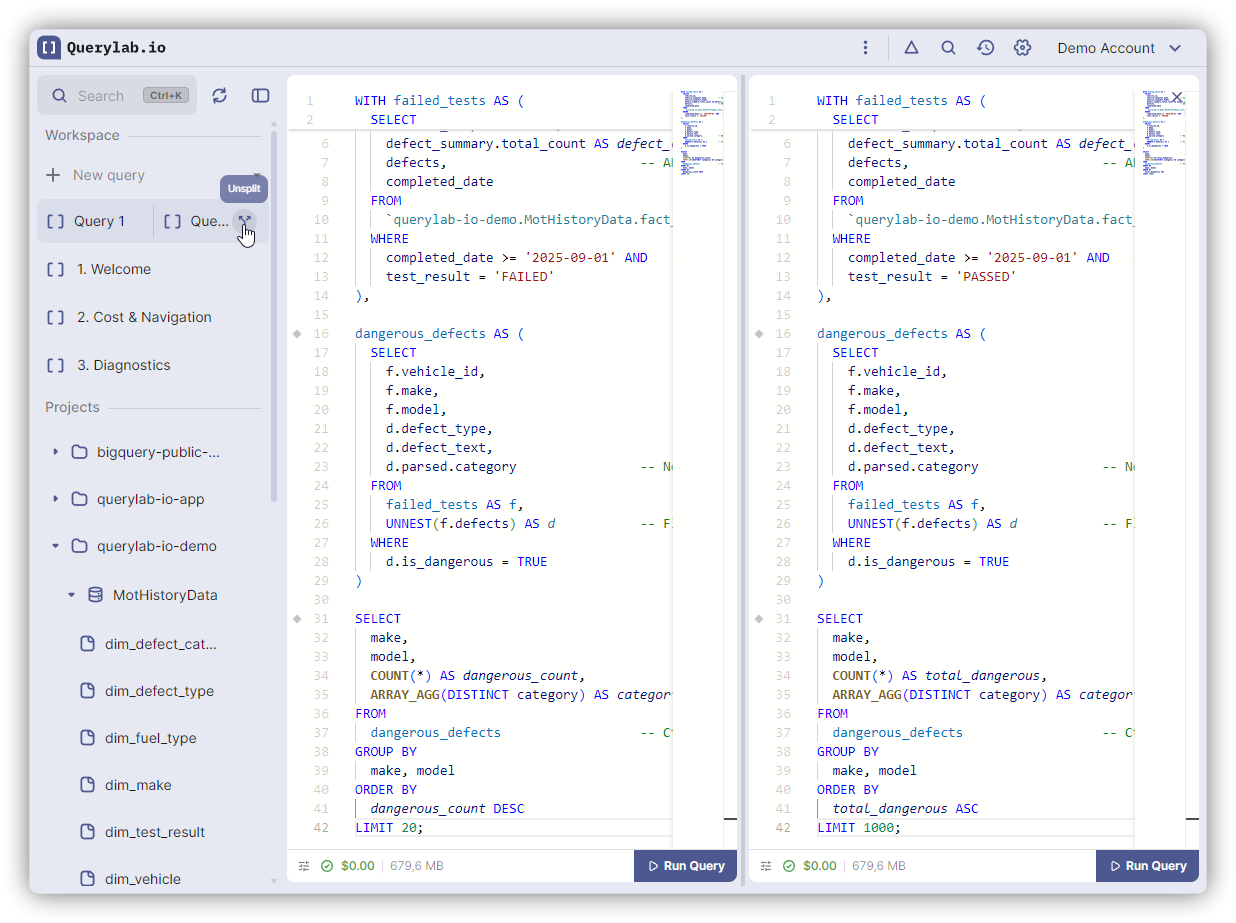
Enable
Multiple ways to activate split view:
- Click Split View button in toolbar
- Command Palette (
Cmd+K) → "Enable Split View" - Drag-to-split: Drag one tab onto another to create a split
Use Cases
| Scenario | Left Panel | Right Panel |
|---|---|---|
| Optimization | Original query | Optimized version |
| Migration | Old schema query | New schema query |
| Debugging | Data source | Validation query |
| Learning | Example | Your implementation |
Layout
- Default: 50-50 split
- Drag divider to resize (20-80% range)
- Each panel has independent tabs, config, results
Independent Features
Each panel operates separately:
- Run queries independently
- Different BigQuery projects
- Separate result sets
- Own tab bar
Compare Mode
When both panels contain SQL queries, you can compare them side-by-side:
Activate: Cmd/Ctrl+Shift+C
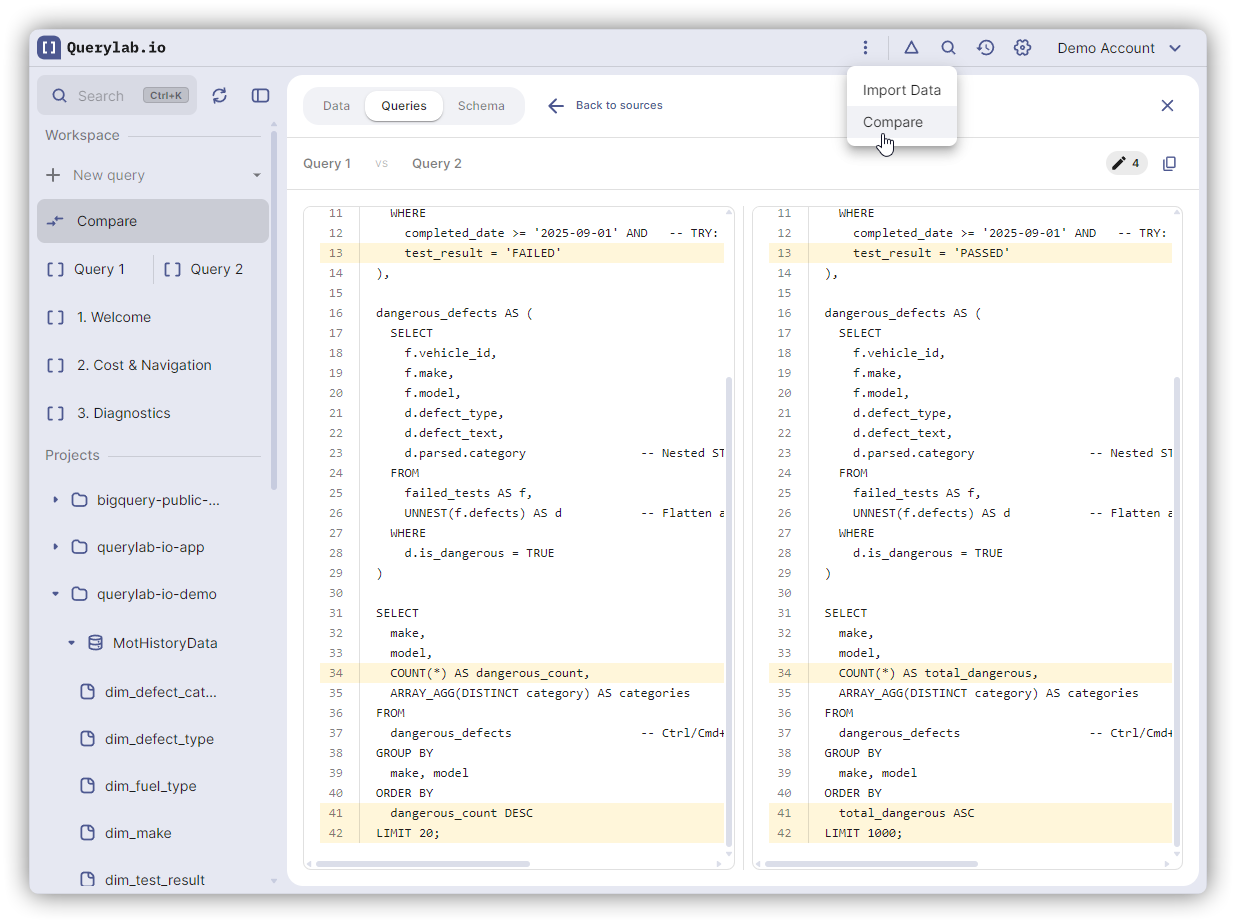
Features:
- Side-by-side diff editor showing changes
- Syntax highlighting for added/removed/modified lines
- Scroll synchronization between panels
- Useful for reviewing optimizations or query migrations
For full comparison features (data, schema), see Data Compare.
Exit: Press Cmd/Ctrl+Shift+C again or switch tabs
Disable
Click Split View button again or Command Palette → "Disable Split View"
Active panel becomes primary; inactive panel preserved for re-enabling.