Data Compare
Compare SQL queries, table schemas, or row-level data to identify differences between two sources.
Accessing Compare
Shortcut: Cmd+Shift+C (Mac) / Ctrl+Shift+C (Windows/Linux)
Command Palette: Cmd+K then search for "Compare"
Menu: File > Compare...
Comparison Types
Querylab.io supports three comparison modes:
| Type | Purpose |
|---|---|
| Queries | Line-by-line SQL text comparison |
| Schema | Column structure and metadata comparison |
| Data | Row-level data comparison with key matching |
Query Comparison
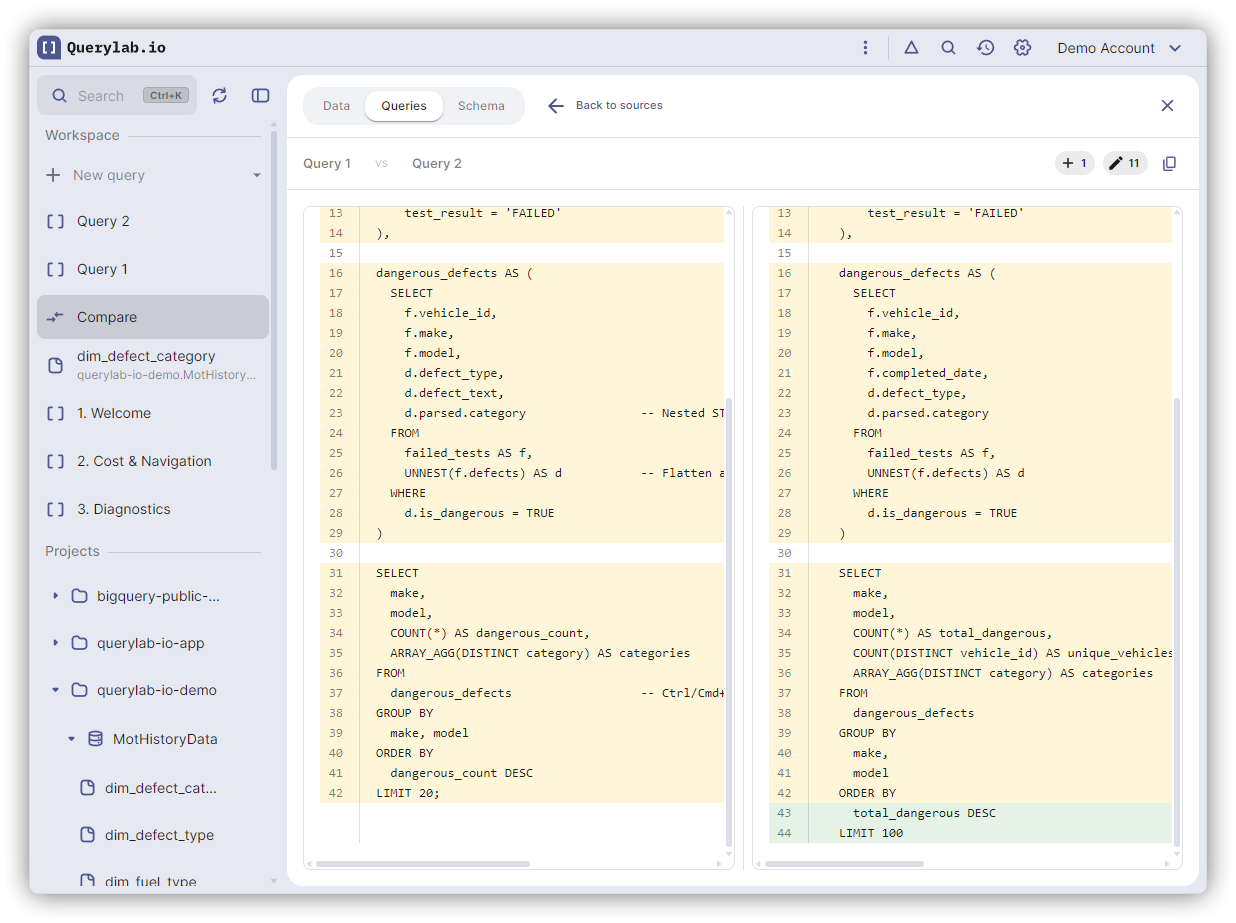
Compare SQL text from open tabs or pasted content to see line-by-line differences.
Selecting Sources
Choose from:
- Open tabs - Select any query tab with SQL content
- Paste SQL - Paste SQL directly for comparison
Understanding Results
Results display in a side-by-side diff view showing:
- Added lines (green) - Lines only in the right source
- Removed lines (red) - Lines only in the left source
- Modified lines (yellow) - Lines that differ between sources
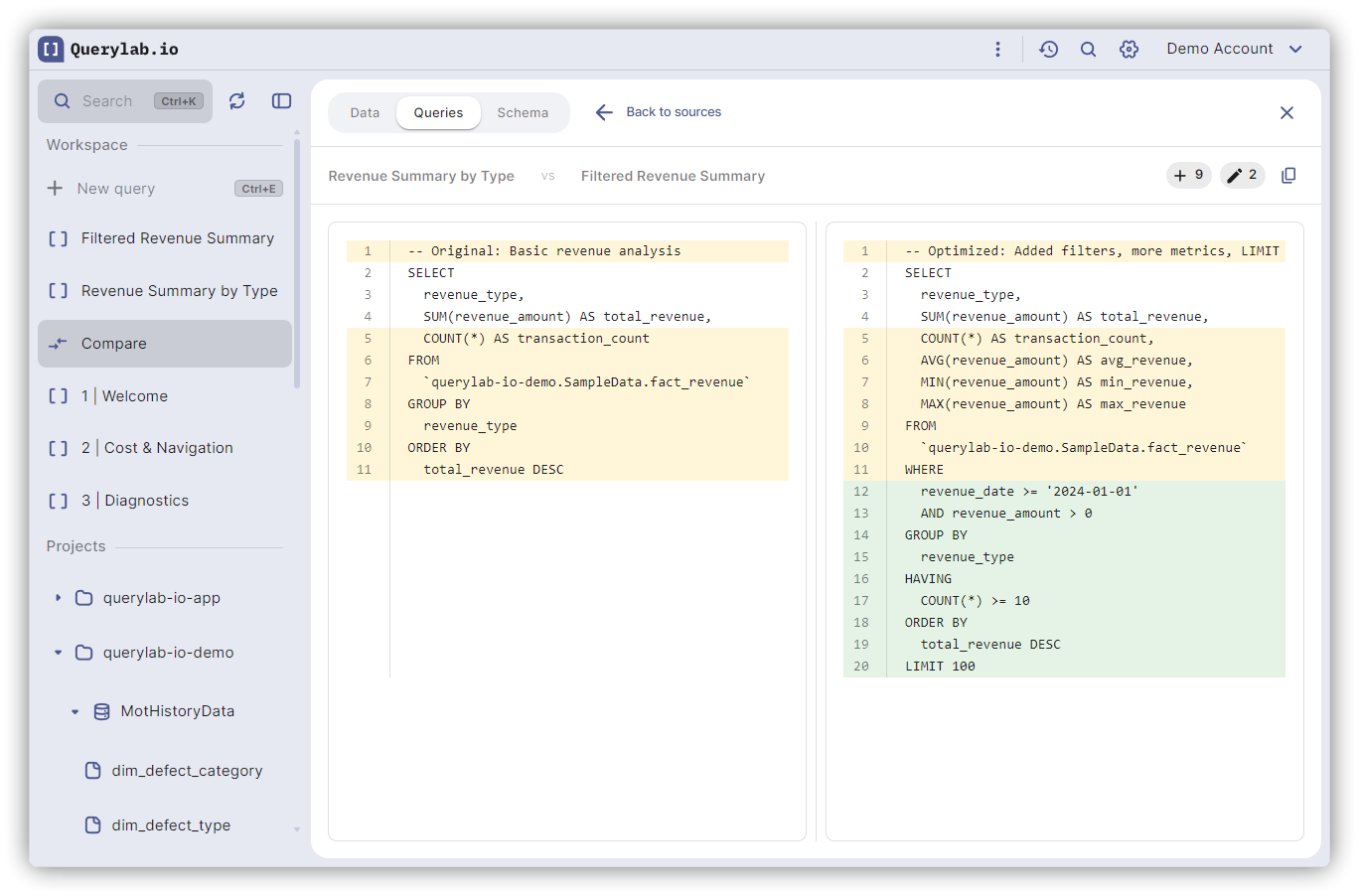
Use this to review SQL changes before applying migrations or to understand differences between query versions.
Schema Comparison
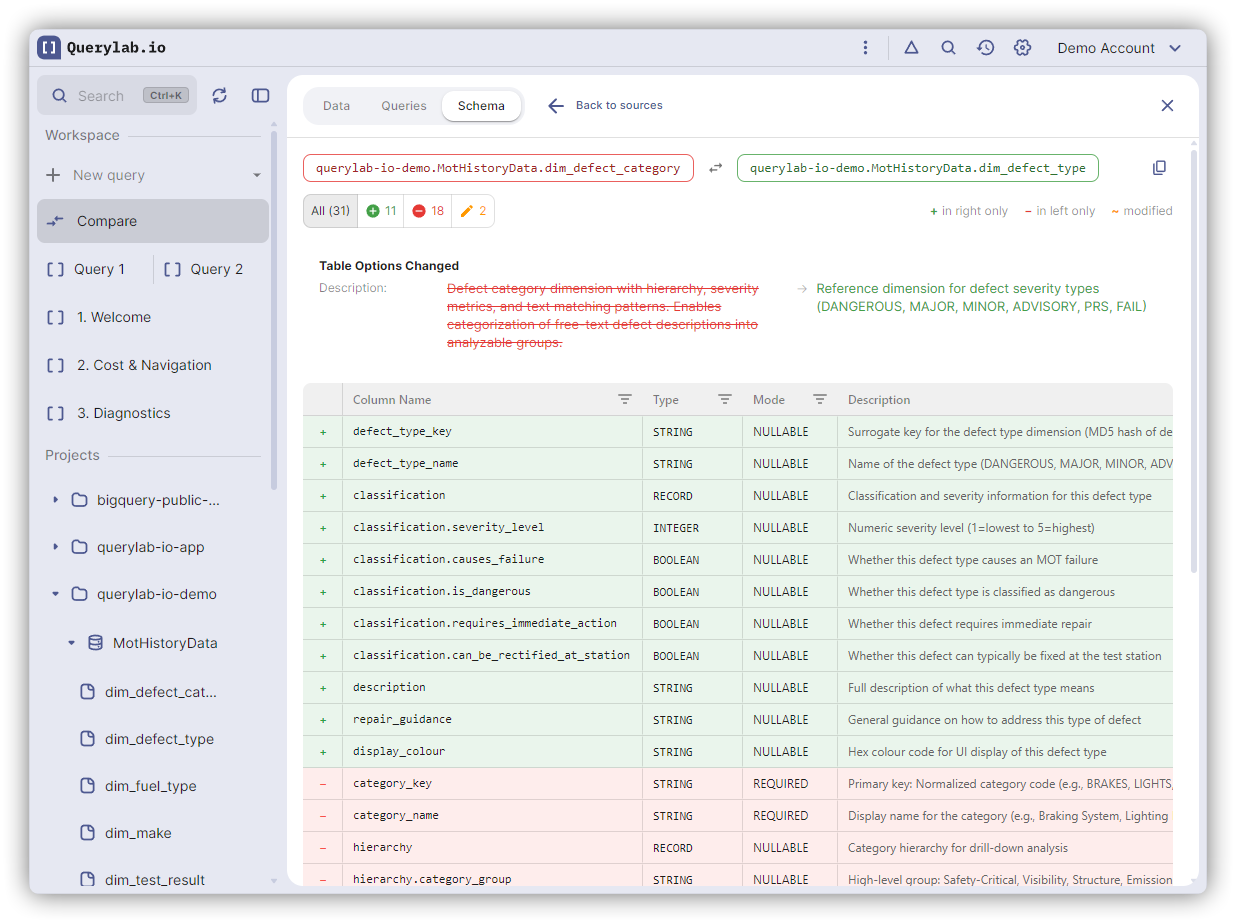
Compare table, view, or routine definitions to identify structural differences.
Entity Types
Toggle between:
- Tables - Compare table column structures
- Views - Compare view definitions
- Routines - Compare stored procedures or functions
What Gets Compared
| Element | Comparison |
|---|---|
| Columns | Added, removed, or modified columns |
| Data Types | Type changes (e.g., STRING to INT64) |
| Modes | NULLABLE, REQUIRED, REPEATED changes |
| Partitioning | Partition column changes |
| Clustering | Clustering column changes |
| Description | Table description changes |
Results Display
The schema diff grid shows columns categorized as:
- Added (green) - Columns only in the right source
- Removed (red) - Columns only in the left source
- Modified (orange) - Columns with type or mode changes
- Unchanged - Columns identical in both sources
Data Comparison
Compare actual data row-by-row between two sources to find additions, deletions, and changes.
Data Sources
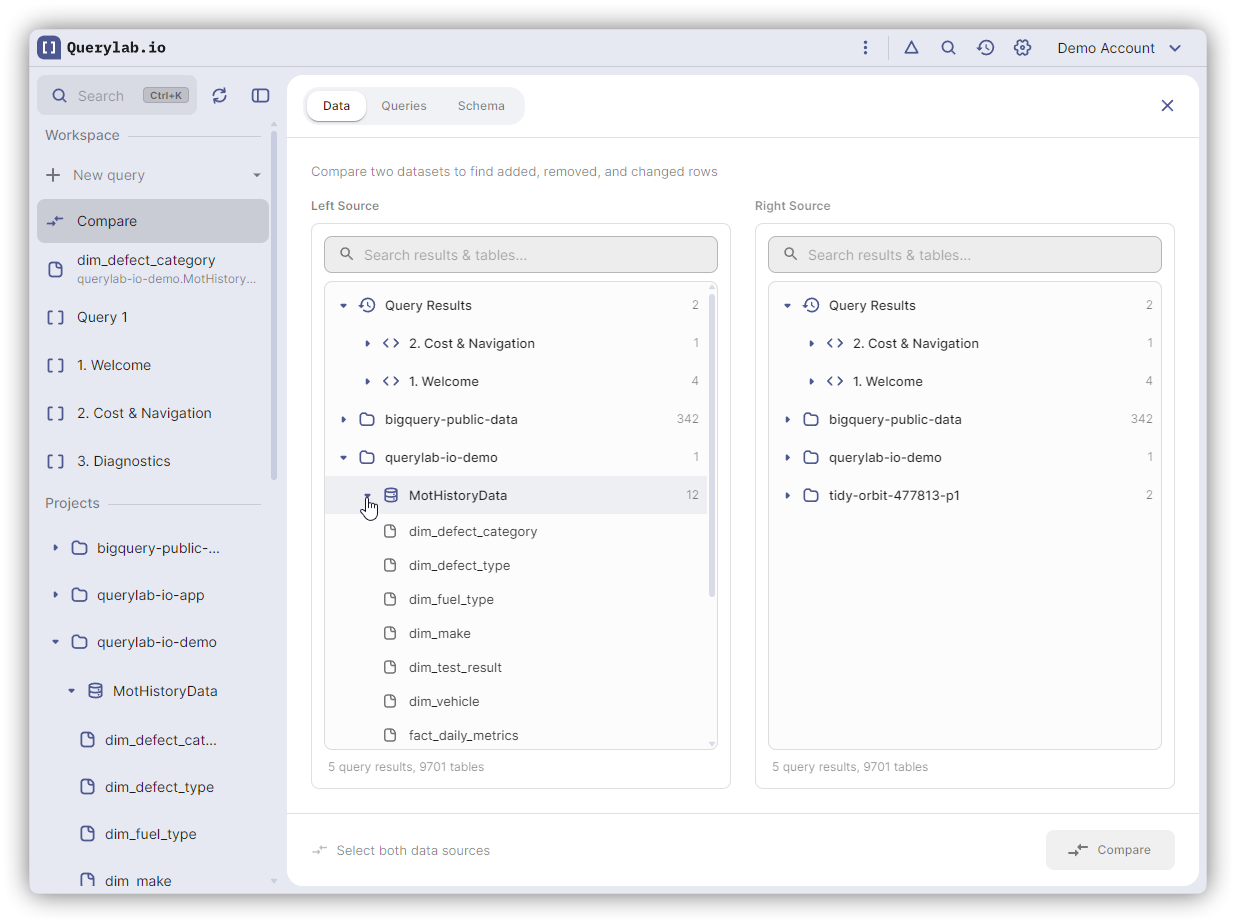
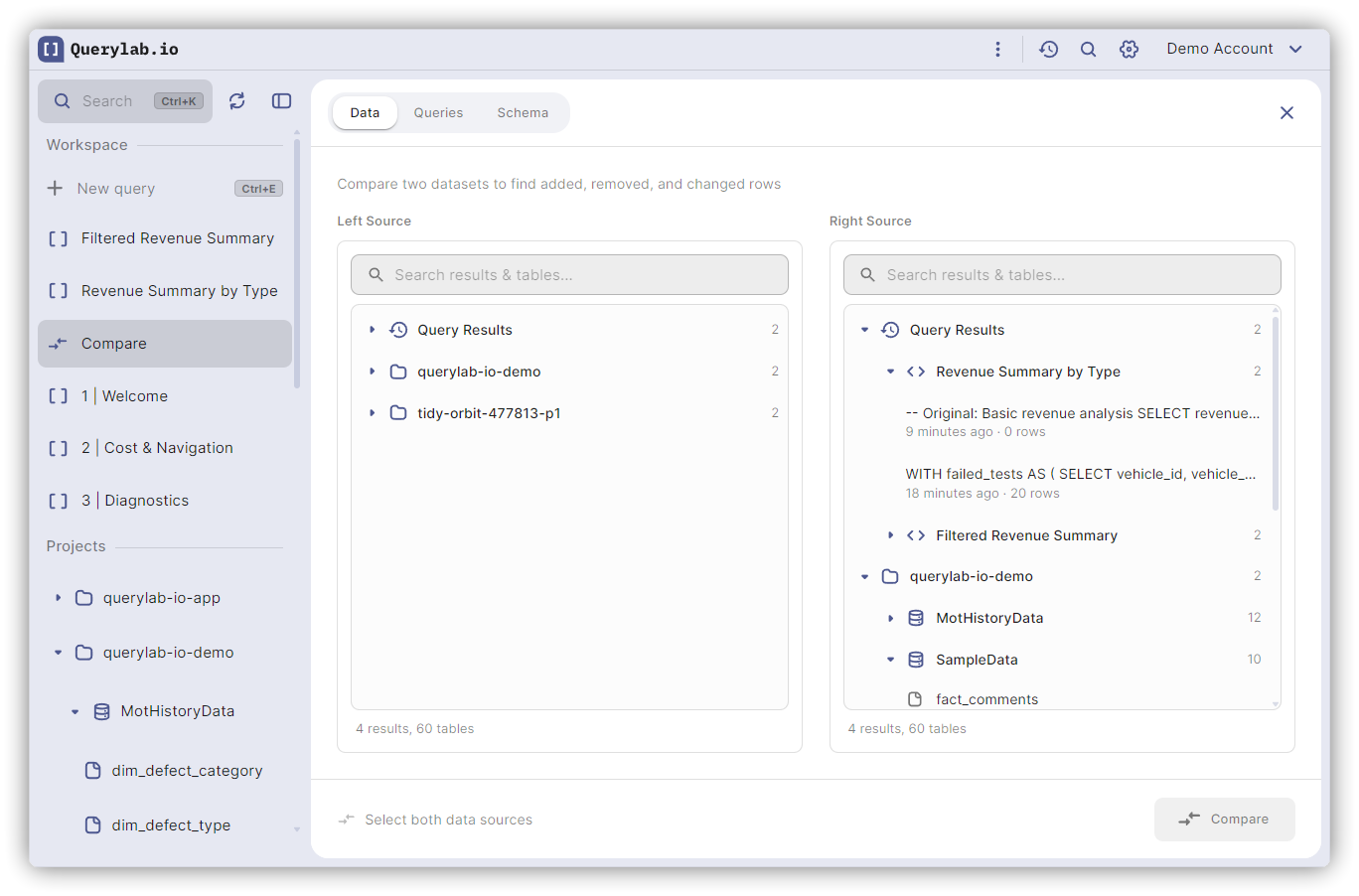
The tree picker displays all available data sources in a unified view:
Query Results
- Historical query results from any open tab
- Shows query preview, execution time, and row count
- Results remain available until they expire (typically 24 hours)
BigQuery Tables
- Navigate through Project > Dataset > Table hierarchy
- Search across all available tables
- Supports time travel for historical snapshots
Tree-Based Selection
The data source picker organizes sources hierarchically:
Query Results
├── Tab: Sales Analysis
│   ├── SELECT * FROM sales... (2 hours ago, 1,234 rows)
│   └── SELECT region, SUM... (4 hours ago, 56 rows)
└── Tab: User Queries
    └── SELECT user_id... (1 hour ago, 890 rows)

my-project
├── analytics
│   ├── events
│   ├── sessions
│   └── users
└── warehouse
    ├── orders
    └── products
Use the search field to filter by name across both query results and tables.
Key Column Selection
Key columns uniquely identify rows for matching between the two datasets.
Auto-Detection
Querylab.io detects potential key columns from:
- Primary keys - From table metadata (highest confidence)
- Clustering columns - BigQuery clustering configuration
- Name patterns - Columns named
id,key,*_id, etc. - Unique values - Columns with unique values in sample data
Manual Selection
Check columns in the config panel to use them as keys. Only columns present in both sources are available. You can select multiple columns for composite keys.
No-Key Mode
Enable "No key mode" to compare without key matching. This uses row hashing to identify exact duplicates and unique rows, but cannot detect modified rows (only additions and deletions).
No-key mode cannot identify which specific values changed. Use key-based comparison when you need to track modifications.
Partition Filters
For partitioned tables, optionally filter by partition range to reduce scanned data:
Date Partitions
- Select a date range (start and end dates)
- End date is optional (defaults to current date)
Integer Range Partitions
- Enter start and end integer values
Partition filters apply to both sides independently, useful when comparing different date ranges.
Custom Filters
Add WHERE clause conditions to filter data before comparison:
- Expand the "Filters" section in the config panel
- Enter a filter expression (e.g.,
status = 'active') - Press Enter or click Add
Multiple filters are combined with AND. Invalid SQL expressions are rejected with an error message.
Excluded Columns
Exclude columns from the comparison to focus on relevant data:
- Expand "Excluded Columns" in the config panel
- Check columns to exclude
Excluded columns are not compared but still appear in results for reference. Useful for ignoring timestamp columns, audit fields, or computed values.
Comparison Engines
Querylab.io selects an engine based on data size:
| Engine | Cell Count | Behavior |
|---|---|---|
| In-Memory | Up to 500K cells | Fast client-side comparison |
| SQL-Based | Over 500K cells | Server-side BigQuery comparison |
Cell count = rows x columns. For example, 10,000 rows with 50 columns = 500,000 cells.
In-Memory Engine
- Sub-second for small datasets
- No BigQuery cost (uses cached results)
- Limited to preview data available client-side
SQL-Based Engine
- Handles datasets of any size
- Runs efficient BigQuery JOIN/EXCEPT queries
- Displays cost estimate before running
Cost Estimation
For SQL-based comparisons, Querylab.io shows estimated bytes and cost before running:
- Click "Estimate Cost" to perform a dry run
- Review the estimated bytes processed and cost
- Click "Run Comparison" to proceed
Time Travel
Compare tables at different points in time:
- Select a table as your data source
- Click the timestamp picker
- Choose a specific date/time (within BigQuery's retention period, typically 7 days)
Time travel supports comparing:
- Current data vs. yesterday's snapshot
- Two different historical snapshots
- Same table at different times to track changes over time
Use time travel to:
- Compare current data vs. yesterday's snapshot
- Investigate when specific changes occurred
- Validate data pipeline transformations
Understanding Results
Summary Bar
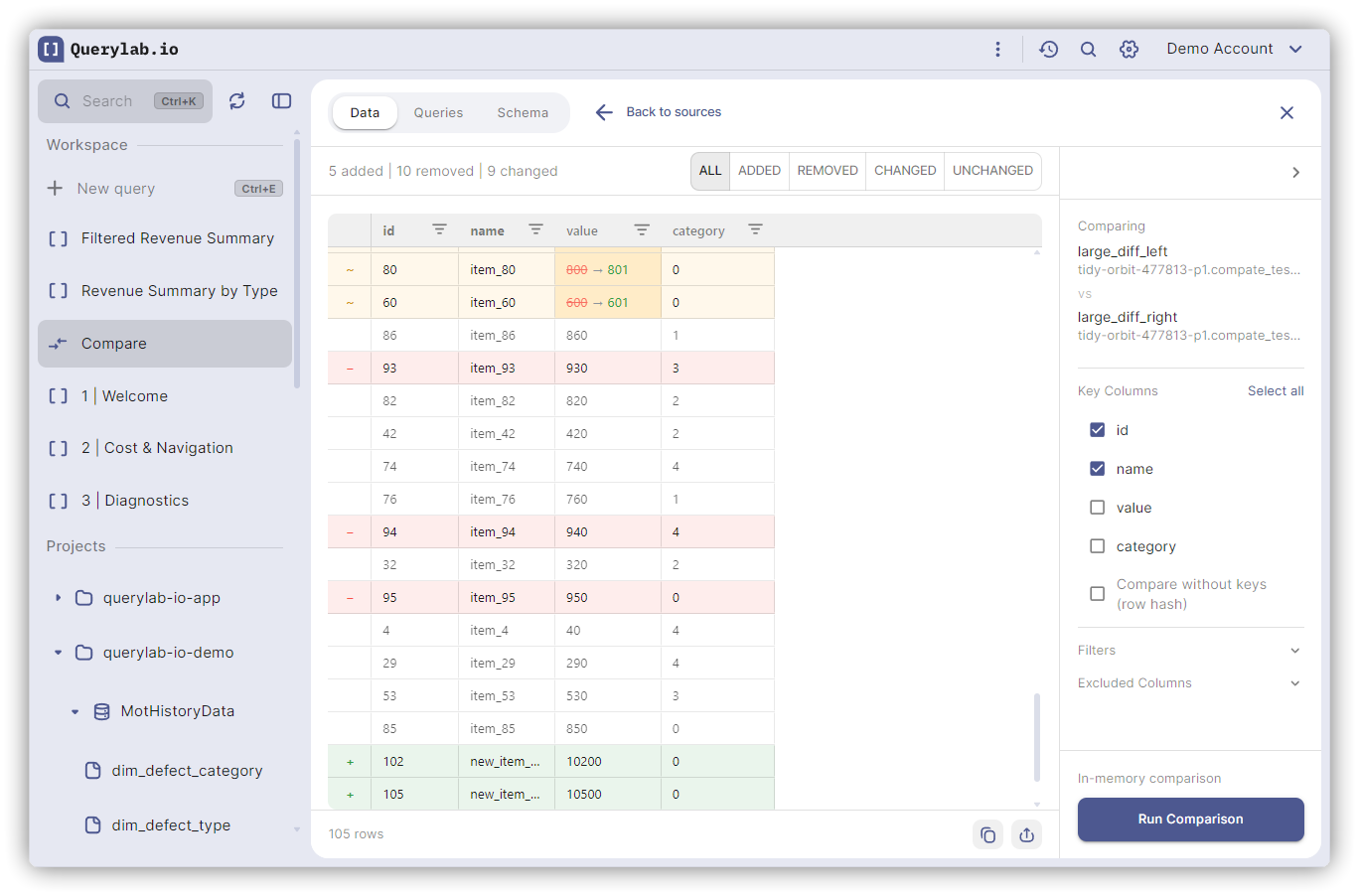
The toolbar shows counts for each difference type:
- + Added rows (in right source only)
- - Removed rows (in left source only)
- ~ Changed rows (same key, different values)
- = Unchanged rows (identical in both)
Filtering Results
Click the filter buttons to show:
- All - Show all rows
- Added - Only rows added to the right source
- Removed - Only rows removed from the left source
- Changed - Only rows with value differences
- Unchanged - Only matching rows
Changed Cell Display
Changed cells show the transition: old value → new value
The old value appears with strikethrough styling, followed by an arrow and the new value.
Export Results
Export comparison results to Google Sheets for further analysis or reporting.
Row Coloring
| Color | Meaning |
|---|---|
| Green background | Row added (exists only in right source) |
| Red background | Row removed (exists only in left source) |
| Orange cell highlight | Value changed in this cell |
| No highlight | Row unchanged |
Type-Specific Handling
STRUCT Columns
Nested STRUCT or RECORD fields are flattened for comparison:
metadata.name, metadata.version
Each nested field is compared independently. Flattening happens before comparison.
ARRAY Columns
Arrays are compared using hash values (exact match). The comparison cannot identify which specific array elements changed, only whether the array as a whole is different.
NULL Values
NULL values use IS DISTINCT FROM semantics:
- NULL = NULL is considered equal
- NULL != any non-NULL value
Limits
| Limit | Value |
|---|---|
| In-memory comparison | Up to 500,000 cells |
| Columns for comparison | No hard limit (complex types flattened) |
| Key columns | Up to 10 recommended |
| Custom filters | No limit |
Tips
Efficient Comparisons
- Use partition filters to reduce scanned data
- Select specific key columns rather than using no-key mode
- Exclude timestamp columns that change on every write
Comparing Query Results
- Run queries in separate tabs before comparing
- Results expire after 24 hours. Compare promptly.
Large Table Comparisons
- Add filters to reduce row counts
- Use partition filters on partitioned tables
- Consider sampling with WHERE clauses