SQL Notebooks
Like Jupyter notebooks, but pure BigQuery SQL. Each cell runs a query and stores the result in an anonymous table that downstream cells can reference by name.
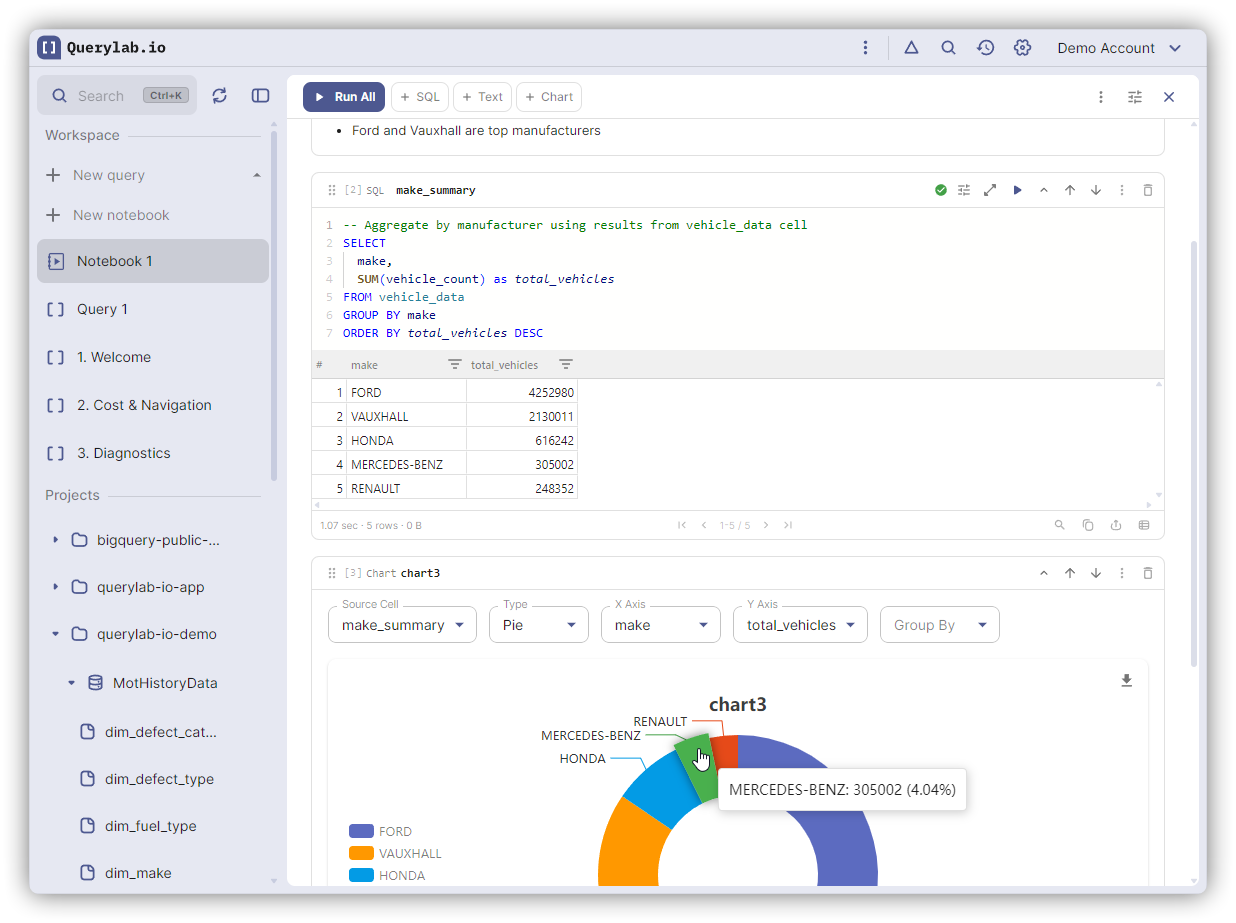
Creating a Notebook
- Command Palette:
Cmd/Ctrl+K→ type "notebook" → select "New SQL notebook" - Convert existing query: Editor menu (...) → "Convert to notebook"
Anonymous Tables
When you run a SELECT cell, BigQuery saves the result to a temporary anonymous table. This table:
- Lives for ~24 hours
- Can be referenced by cell name in downstream queries
DDL/DML cells (CREATE, INSERT, etc.) execute normally but don't produce an anonymous table - they can't be referenced by other cells.
Cross-Cell References
Reference upstream cell results by name in FROM or JOIN:
-- Cell: active_users
SELECT user_id, email FROM users WHERE status = 'active'
-- Cell: user_orders
SELECT u.user_id, COUNT(*) as order_count
FROM active_users u  -- references anonymous table from cell above
JOIN orders o ON u.user_id = o.user_id
GROUP BY 1
When you run user_orders, Querylab.io rewrites the query behind the scenes - replacing active_users with the actual anonymous table reference like myproject._script123.anon456.
Cell names: Start with letter, alphanumeric and underscores only.
Variables
DECLARE Variables
Standard BigQuery scripting variables with types. Defined in upstream cells, available downstream:
-- Cell: params
DECLARE start_date DATE DEFAULT '2024-01-01';
DECLARE end_date DATE DEFAULT CURRENT_DATE();
DECLARE min_amount INT64 DEFAULT 100;
-- Cell: filtered_orders
SELECT * FROM orders
WHERE order_date BETWEEN start_date AND end_date
  AND amount >= min_amount
Template Variables
Define variables with simple assignment syntax. Use them in two ways:
{{ name }} — Identifier Substitution
For table names, column names, project IDs — anything that's part of SQL structure:
-- Cell: config
table_name = 'users';
project_id = 'my-project';
-- Cell: query
SELECT * FROM {{ project_id }}.analytics.{{ table_name }}
The {{ }} syntax does direct string replacement before the query runs.
@name — Parameter Binding
For values in WHERE clauses, function arguments, or anywhere you'd use a literal:
-- Cell: config
user_id = '123';
min_amount = '100';
-- Cell: query
SELECT * FROM orders
WHERE user_id = @user_id
  AND amount >= @min_amount
The @param syntax uses BigQuery's native parameterized queries — the values are bound safely at execution time.
When to Use Each
| Syntax | Use For | Example |
|---|---|---|
{{ name }} | Identifiers (tables, columns, projects) | FROM {{ table_name }} |
@name | Values (strings, numbers, dates) | WHERE id = @user_id |
You can use the same variable with both syntaxes:
-- Cell: config
target = 'users';
-- Cell: query
SELECT * FROM {{ target }}       -- table name
WHERE source = @target           -- literal value
Prefer @param for values — it's safer (prevents SQL injection) and enables BigQuery's query caching.
Template-only cells (no SQL) are skipped during execution but their variables are extracted for downstream use.
Staleness
When you modify or re-run a cell, all downstream cells that reference it are marked stale. Re-run them to refresh.
Configuration
Override settings per-notebook or per-cell via the gear icon:
| Setting | Purpose |
|---|---|
| Billing Project | Override default project |
| Max GB / $ | Block execution above limit |
| Table Sample % | Reduce scanned data |
Cell settings override notebook settings.
Cell Operations
| Action | How |
|---|---|
| Duplicate | Cell menu → Duplicate |
| Copy/Paste | Cmd/Ctrl+C on cell → Cmd/Ctrl+V |
| Reorder | Drag cells up and down |
| Rename | Click cell name to edit |
| Focused Mode | Expand a single cell to full width for complex queries |
Sharing
Share notebooks via encrypted links, just like queries. Recipients get the full notebook with all cells.
See Sharing for details.
Destination Tables
By default, cell results are stored in anonymous tables. To write results to a named table instead, set a Destination Table in the cell's config (gear icon). This is useful for creating persistent output that other tools or queries can reference.
Inline Edit
Use AI to edit SQL in any cell — select text, press Cmd+E / Ctrl+E, and describe your changes. See Inline Edit.
Important
- Run upstream first - cells must execute before downstream cells can reference them
- Anonymous tables expire - after ~24 hours, re-run upstream cells