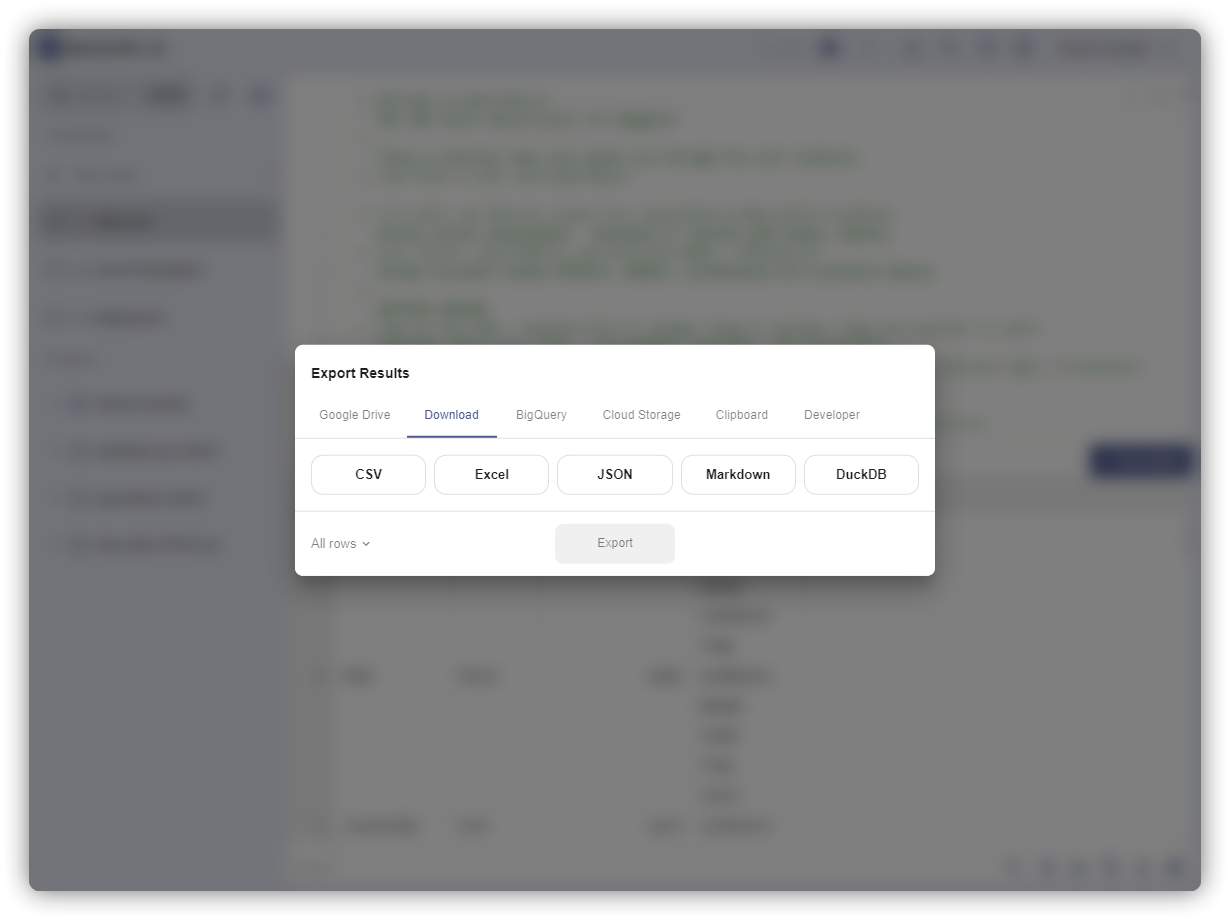
Export Results

Export query results to Google Sheets, CSV files, or Google Cloud Storage.


Export Options

Click Export in the results toolbar to access export options:

Row Selection

Choose how many rows to export:

  • Page: Current page only
  • 1,000: First 1,000 rows
  • 10,000: First 10,000 rows
  • Max: Up to 100,000 rows

Google Sheets Export

Export results directly to Google Sheets for analysis and sharing.

Create New Spreadsheet

  1. Click Export → Select "Google Drive"
  2. Click "Create new spreadsheet"
  3. Enter spreadsheet name
  4. Click Export
  5. New Sheet opens in browser tab

Add to Existing Spreadsheet

  1. Click Export → Select "Google Drive"
  2. Click "Add to existing spreadsheet"
  3. Select spreadsheet from Google Drive picker
  4. Enter tab name
  5. Click Export

Update or Append

For repeat exports to the same spreadsheet:

  • Update: Replace existing tab data
  • Append: Add rows to end of tab
    • With header: Include column headers
    • Data only: Append data rows without headers

Data Type Conversion

BigQuerySheets
INT64, FLOAT64Number
STRINGText
DATE, TIMESTAMPDate
ARRAY, STRUCTJSON string
NULLEmpty cell

Limits

  • ~100,000 rows practical limit
  • 10 million cells max per spreadsheet
  • Large exports may timeout

CSV Export

Download results as comma-separated values (CSV) file.

  1. Click Export → Select "Download"
  2. Click CSV
  3. File downloads to your browser's default location

Format: UTF-8 encoded with headers, Excel-compatible


Cloud Storage Export

Export large datasets directly to Google Cloud Storage (GCS).

Best for: Datasets >100,000 rows that exceed Google Sheets limits

  1. Click Export → Select "Download"
  2. Click Cloud Storage
  3. Export starts in background
  4. Results saved to BigQuery Cloud Storage bucket

Note: Requires appropriate GCS permissions. Exported files are saved in your BigQuery project's default bucket.


Open Google Sheets

View Google Sheets inline alongside your queries.

How to Open

  1. Cmd/Ctrl+K → "Open Google Sheet"
  2. Paste Sheet URL
  3. Sheet renders in new tab

Use Cases

  • Reference data while writing queries
  • Compare results against expected values
  • View dashboards alongside raw data

Notes

  • Read-only in Querylab.io
  • Click link to open in Google Sheets for full editing
  • Requires view access to the Sheet